Today in this article we will discuss about a topic How to fix Hostinger WordPress Migrate Website (Broken URL) and how I Migrated 3 WordPress Websites to Hostinger and All of Them Had Broken URLs – Here’s Exactly How I Fixed Every Single One, This is A real story, real websites, real solutions – and everything you need to do the same. Let me be completely upfront with you. A few days ago, I migrated three of my WordPress websites to Hostinger. I was excited – new hosting, better speed, more control. I went through the entire migration process, uploaded everything, checked that my content was intact, and thought I was done.
Then I clicked a link on my homepage.
Instead of landing on my page, my browser shot me to something like this:
My stomach dropped. I thought something was seriously wrong. I refreshed, tried another link – same issue. Clicked a category link on another site – same ugly temporary Hostinger URL. Checked the third website – yep, same problem there too.
Three websites. Same issue. All at once.
This is the story of what went wrong, why it happened, how I fixed all three, and exactly what you need to do if this happens to you.
My 3 Websites That Were Affected
Before I explain the technical side, let me introduce the three websites so you understand the real scale of this problem.
#1. SlideSharePPT – slideshareppt.net
This is my educational resource website focused on PowerPoint presentations, PDFs, and mind maps – especially for students preparing for competitive exams like UPSC. It has a good amount of content, multiple categories, and gets consistent organic traffic from students across India.
After migration, every internal link on this website was redirecting to: mediumvioletred-crow-110127.hostingersite.com
Clicking on a mind map download link, clicking on a category, clicking on any blog post – all of them were landing on that temporary Hostinger staging domain instead of slideshareppt.net. For an educational website where students come daily to download study material, this was a real problem. Every single visitor would have seen a broken, confusing URL that had nothing to do with my brand.
#2. AutoJournalism – autojournalism.com
This is my automotive news and reviews website covering new cars, car launches, pricing, and the Indian automobile industry. It is a content-heavy website with articles, category pages, and product-style reviews.
After migration, clicking on any category page – like /category/new-cars/ – would redirect to: https://plum-quail-110127.hostingersite.com/category/new-cars/
Imagine a reader landing on your website wanting to read about the latest car launch and instead seeing a random pastel-colored bird name in the URL. Not exactly confidence-inspiring for a professional automotive journalism brand.
#3. LetsLearnSquad – letslearnsquad.com
This is my education-focused website covering topics like CTET (Central Teacher Eligibility Test), teaching resources, and learning materials for aspiring teachers in India. Education content consumers are a skeptical audience – they need to trust your website completely before they engage with it.
After migration, the temporary URL showing up was: https://darkred-woodpecker-110127.hostingersite.com/category/ctet/
For a website targeting teachers and serious exam aspirants, having a random bird and color combination in your URL is not exactly a great first impression.
Why Did This Happen to All Three Websites at the Same Time?
When you migrate WordPress to Hostinger – or to any new hosting provider – the platform gives your site a temporary staging domain while your real domain’s DNS is still propagating or not yet configured. Hostinger’s temporary domains follow a pattern that looks like:
adjective-animal-randomnumber.hostingersite.com
That’s where mediumvioletred-crow, plum-quail, and darkred-woodpecker came from.
Here’s the core problem: WordPress stores your website’s URL directly inside its database. Not in a config file. Not in your theme. Inside the MySQL database. And when WordPress was set up or restored under the temporary Hostinger domain, it saved that temporary URL as the official address of the website – everywhere.
This includes:
- The
siteurlandhomevalues in thewp_optionstable (the two primary URL settings) - Every internal link embedded inside your blog posts and pages
- Image source paths and attachment URLs
- Navigation menu links
- Widget and sidebar settings
- Theme customizer options
- Plugin settings (SEO plugins, page builders, contact forms, galleries)
- Serialized data stored across dozens of database tables
So even if you update your domain in WordPress settings, all those other locations still hold the old temporary URL. That is why links keep breaking – and why you need a full database search and replace, not just a settings change.
The Real Numbers: How Widespread Was the Problem?
To give you a sense of how deep this issue goes, here’s what I found after running the database replacement on all three sites:
- On slideshareppt.net, the old Hostinger URL appeared in hundreds of database rows across multiple tables – not just in
wp_optionsbut in post content, postmeta, theme options, and plugin settings. - On autojournalism.com, the replacement touched rows in the
wp_posts,wp_postmeta,wp_options, and plugin-specific tables. - On letslearnsquad.com, same story – the temporary URL had embedded itself throughout the entire database during migration.
If I had only fixed the siteurl and home settings manually, I would have fixed maybe 2 rows out of hundreds. Every other link on all three websites would have continued pointing to the wrong domain.
How I Fixed All Three Websites – Step by Step
I used the same method for all three websites, and it worked perfectly every single time. Here is the exact process.
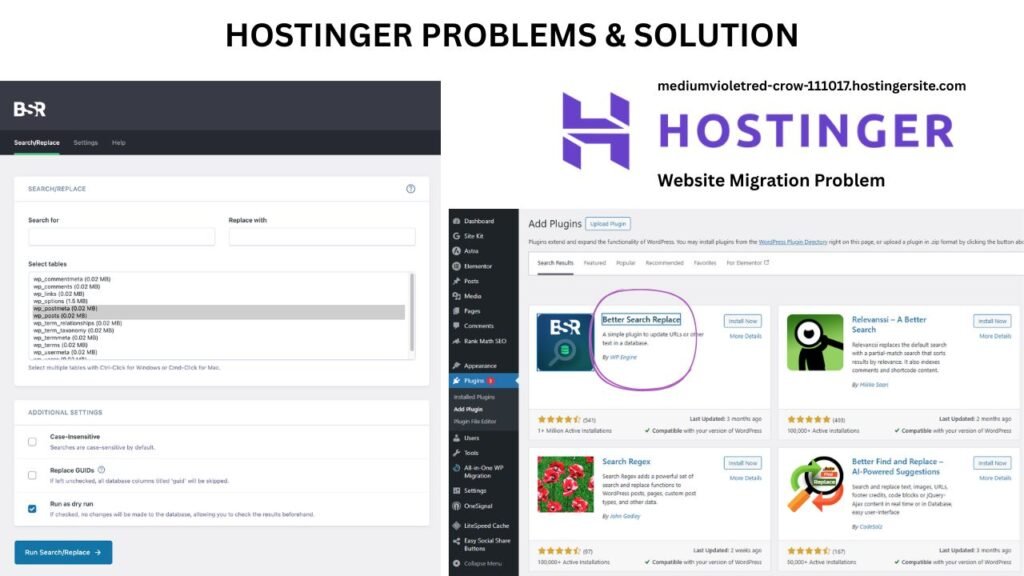
The Tool: Better Search Replace Plugin (Free)
This is a free WordPress plugin that performs a database-wide search and replace – and critically, it handles serialized data correctly. This matters because WordPress and many plugins store data in a serialized PHP format, where a plain SQL find-and-replace would corrupt the data structure. Better Search Replace understands this and updates the values safely.
For SlideSharePPT (slideshareppt.net)
The problem URL: mediumvioletred-crow-110127.hostingersite.com
Steps I followed:
- Went to WordPress Dashboard → Plugins → Add New → searched “Better Search Replace” → Installed and Activated
- Navigated to Tools → Better Search Replace
- In Search for: typed
mediumvioletred-crow-110127.hostingersite.com - In Replace with: typed
slideshareppt.net - Selected all database tables (Shift+click to select all)
- Left all three checkboxes unchecked (Case-Insensitive: off, Replace GUIDs: off, Run as dry run: off)
- Clicked Run Search/Replace
The plugin ran through every table and replaced every instance of the old URL. I then went to Settings → General, confirmed both the WordPress Address and Site Address showed https://slideshareppt.net, went to LiteSpeed Cache → Manage → Purge All, and tested my links.
Every single link worked perfectly. Students visiting to download UPSC mind maps and PPT resources now land on the correct domain every time.
For AutoJournalism (autojournalism.com)
The problem URL: plum-quail-110127.hostingersite.com
Same process, different values:
- Search for:
plum-quail-110127.hostingersite.com - Replace with:
autojournalism.com
Ran the replacement, confirmed Settings → General, cleared LiteSpeed cache, tested category pages and article links. The automotive content is now fully accessible under the correct domain with clean, professional URLs.
For LetsLearnSquad (letslearnsquad.com)
The problem URL: darkred-woodpecker-110127.hostingersite.com
Same process again:
- Search for:
darkred-woodpecker-110127.hostingersite.com - Replace with:
letslearnsquad.com
Confirmed settings, cleared cache, tested. Teachers and CTET aspirants visiting the site now see clean, trustworthy URLs on every page they visit.
A Note to Anyone Visiting My Websites
If you visited slideshareppt.net, autojournalism.com, or letslearnsquad.com in the past few days after my migration and noticed strange-looking links in your address bar – I want to personally apologize for that experience and assure you that the issue has been completely resolved.
All three websites are now running correctly under their proper domains. Your data was never at risk, and the content you came for – study materials, car reviews, teaching resources – was always there. It was simply a backend URL configuration issue that occurred during migration, and it has been fully fixed.
Thank you for your patience, and thank you for continuing to visit and trust these websites. Your readership means a great deal, and I am committed to providing a smooth, reliable experience on every platform.
Also read: Top 10 Largest Insurance Companies In Russia (2026) (.PPTX)
Why This Problem Is More Common Than You Think?
A 2023 survey by WP Engine found that over 60% of WordPress site owners have performed at least one site migration in the past two years. Of those, a significant portion reported post-migration URL issues as their number one problem.
The WordPress ecosystem powers over 43% of all websites on the internet as of 2025. With millions of site migrations happening every year across platforms like Hostinger, SiteGround, Bluehost, and others, the temporary-URL-in-database problem affects tens of thousands of website owners annually.
Yet most tutorials gloss over it or mention it only as a footnote. That is exactly why I am writing this in detail – because when it happened to me across three websites simultaneously, I wished there was one clear, complete guide that covered the full picture.
The SEO Impact You Cannot Ignore
Here is something most migration guides do not warn you about clearly enough: this problem can seriously damage your SEO if left unresolved.
When your internal links point to a temporary Hostinger URL, several bad things can happen from a search engine perspective:
- Google may begin indexing the wrong domain. If Googlebot crawls your site while internal links still point to the staging URL, it may follow those links and start indexing
yourcolor-animal-######.hostingersite.comas a separate website. Now you have duplicate content split between two domains – one of which you do not own long-term and which Hostinger could delete at any time. - Your link equity gets diluted. Any backlinks or internal PageRank flowing through the wrong URLs does not properly reach your real domain pages, weakening your overall rankings.
- Crawl budget gets wasted. Googlebot has a limited crawl budget for your site. If it is following broken or redirected URLs to a staging domain, it is wasting time that could be spent indexing your actual content.
- User experience signals suffer. If real visitors land on a confusing URL and immediately bounce out of confusion, your bounce rate increases and dwell time decreases – both of which can negatively influence your rankings over time.
The fix is fast. The damage from not fixing it can take months to recover from.
How to Check If Your WordPress Site Has This Problem Right Now
You don’t have to wait until a visitor reports a problem. Here’s a quick self-check:
- Method 1 – Click test: Open your website, right-click on any internal link (menu item, button, blog post title), and select “Copy link address.” Paste it somewhere and check what domain it shows. If it shows anything other than your real domain, you have the problem.
- Method 2 – Settings check: Log in to WordPress Dashboard → Settings → General. If either URL field shows a
hostingersite.comaddress, you definitely have the problem. - Method 3 – Database check: In phpMyAdmin, open your WordPress database, go to
wp_options, and look at thesiteurlandhomevalues. If they show the staging URL, you need to run the replacement. - Method 4 – Google Search Console: If your site has been live for more than a few days, check the URL Inspection tool in Google Search Console. Enter your homepage URL and see what Google has on record as your canonical URL.
[ Just try the given code and GET 20% INSTANT DISCOUNT ON HOSTINGER ]
FAQ:
Is this a bug in Hostinger?
No. Hostinger is functioning exactly as intended – the temporary domain is a feature, not a bug. It exists so you can access and test your site before DNS propagation completes. The issue is that WordPress saves whatever domain it is configured under into the database, and it has no automatic way of knowing that the domain will later change.
Will my content be lost if I run Better Search Replace?
No. The plugin only changes URL strings within your database. Your actual content – text, images, videos, settings – remains completely intact. It is a find-and-replace operation, not a deletion.
Should I back up my database before running this?
Yes, absolutely. It takes two minutes in Hostinger hPanel under Files → Backups or through your hosting control panel. Always back up before making database changes, even when using trusted tools.
What if I have WooCommerce or an e-commerce setup?
The same process applies. Better Search Replace covers all database tables including WooCommerce-specific ones like wp_woocommerce_sessions and order meta tables. Make sure all tables are selected when you run the replacement.
My site uses Elementor/Divi/Beaver Builder – will this fix it completely?
Better Search Replace handles most page builder stored data correctly. However, Elementor also has its own built-in URL replacement tool under Elementor → Tools → Replace URL in your dashboard. Run both for complete coverage.
How long does the replacement take?
For a typical WordPress blog or small to medium website, the replacement takes 10 to 30 seconds. Larger sites with thousands of posts may take a minute or two. The plugin shows a progress indicator.
Can I run it multiple times safely?
Yes. If you are unsure whether the first run caught everything, you can run it again with the same values. The second run will simply find zero matches and report zero changes – no harm done.
Will this affect my SSL certificate?
No. Your SSL certificate is tied to your domain at the server level, not to WordPress database values. The URL replacement only updates what WordPress has stored internally.
What if I have multiple WordPress sites on the same Hostinger account?
You need to run Better Search Replace separately on each website, since each site has its own database. That is exactly what I did – I ran it independently on all three of my websites. Each one has a separate WordPress dashboard, so the process is independent per site.
My temporary Hostinger URL is different from the examples here – does the same fix apply?
Yes. Regardless of what your specific temporary URL looks like – whether it is teal-dolphin-123456.hostingersite.com or crimson-elephant-987654.hostingersite.com – the fix is identical. Just use your specific temporary URL as the search term.
The Complete Post-Migration Checklist for Hostinger WordPress Sites
Based on my experience fixing three websites back to back, here is the checklist I now follow after every WordPress migration to Hostinger:
- Confirm WordPress is accessible and content is intact
- Take a full database backup from Hostinger hPanel
- Check Settings → General – note what URL WordPress is currently using
- Install Better Search Replace
- Run the URL replacement (old URL → new domain)
- Verify Settings → General shows the correct domain
- Go to Appearance → Menus and confirm navigation links are correct
- Check a few blog posts to confirm internal links work
- Clear all caches (LiteSpeed Cache → Purge All, plus browser cache)
- Submit updated sitemap to Google Search Console
- Run URL inspection in Google Search Console for your homepage
- Deactivate and delete Better Search Replace
Following this checklist on every migration will save you from hours of confusion and potential SEO damage.
Final Thoughts – From Someone Who Just Lived Through It
Migrating three websites to a new host in a short period is not a small undertaking. When all three developed the same URL problem simultaneously, it was genuinely stressful for a few minutes. But here is what I want you to take away from this: the problem looks scarier than it is. The temporary Hostinger URL appearing in your links is not data loss, not a hack, not a server configuration failure. It is a routine WordPress database issue with a clean, fast, free solution.
- Better Search Replace solved it for slideshareppt.net, autojournalism.com, and letslearnsquad.com in under 10 minutes each. No data was lost. No content was damaged. No SEO has been permanently harmed.
- If you are reading this because you are going through the exact same thing right now – I hope this guide gives you confidence that you can fix it quickly and get back to what matters: creating great content for your readers.
- If this guide helped you, feel free to share it with anyone else who is migrating WordPress to Hostinger. The more people who know about this before it happens to them, the better.
Have questions about your specific situation? Drop them in the comments – I have now been through this three times in three days and I am happy to help.